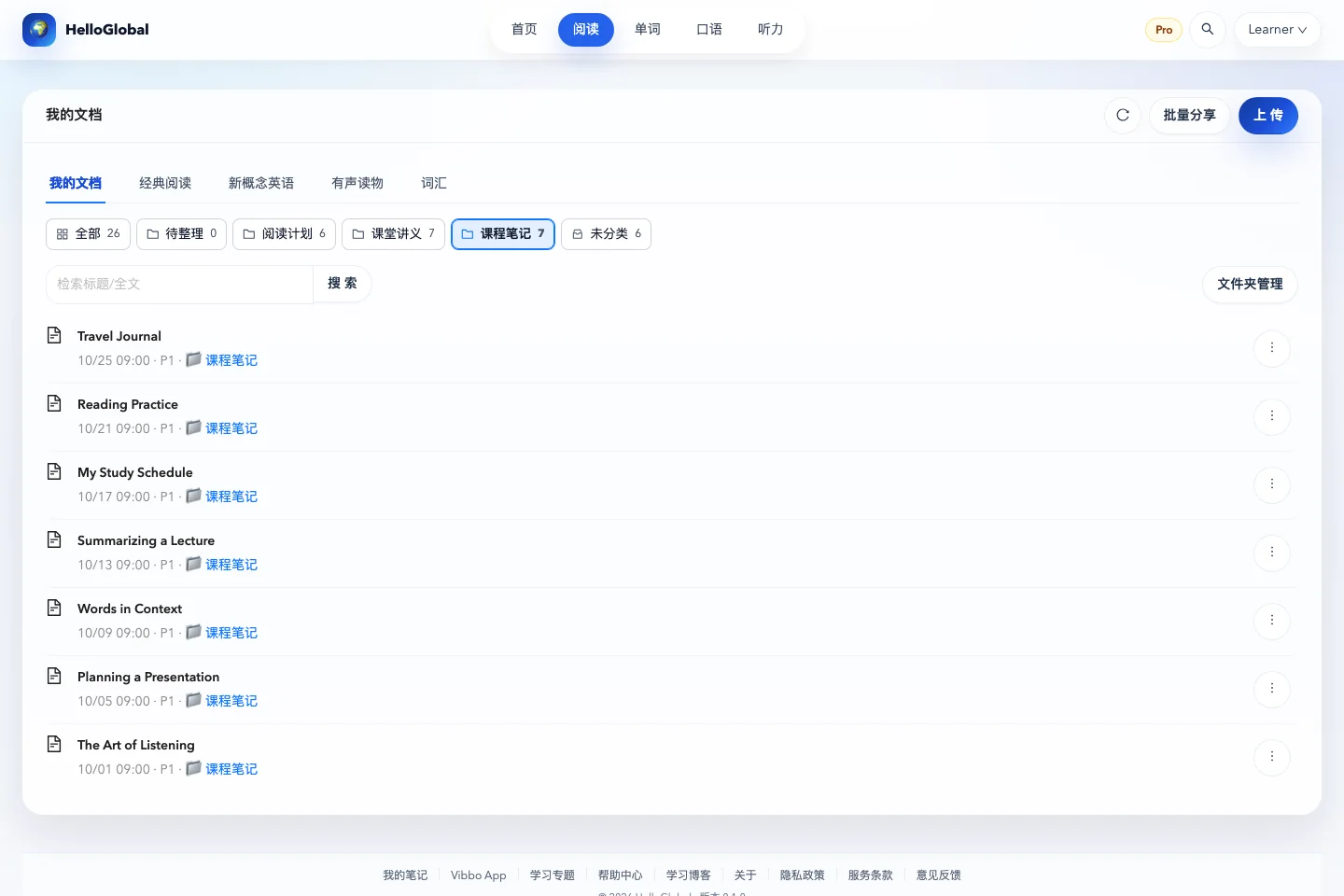
Learners working with scanned handouts, photographed pages or incorrectly rotated PDFs.
Check for existing text before extracting it
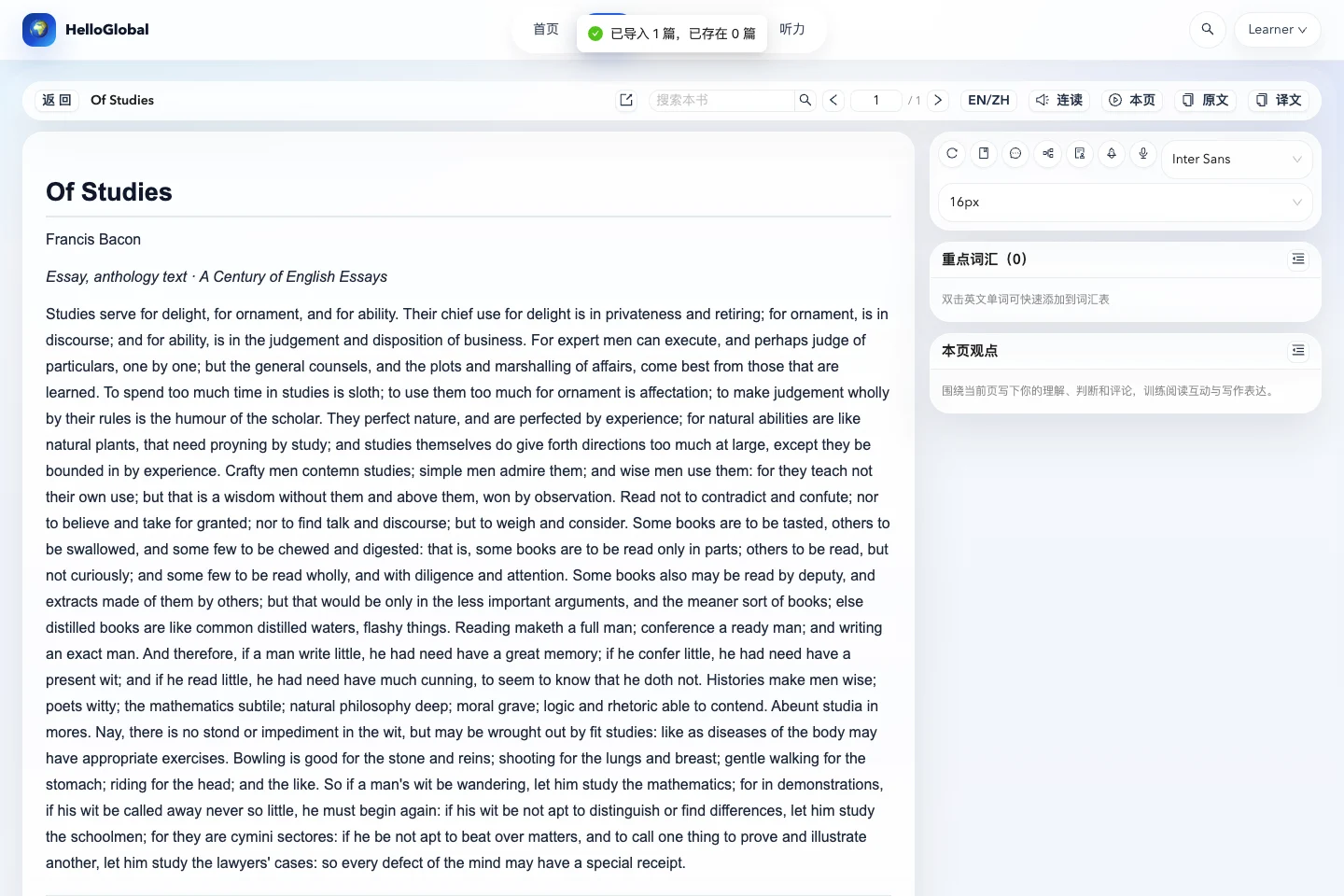
Open the PDF and check whether text can be selected and whether text view contains usable material. For an image-only scan, use the text-extraction control to recognize Chinese and English on the current page, then return to text view to inspect the result. A page that already has usable text does not need repeated recognition.
Prioritize headings, paragraph order, numbers and proper names when checking the output. Blurry images, tilted pages and complex tables can cause mistakes. A successful processing message is not enough to make the result reliable for a quiz or quotation; read and verify it before continuing.
Adjust orientation and retain the image for comparison
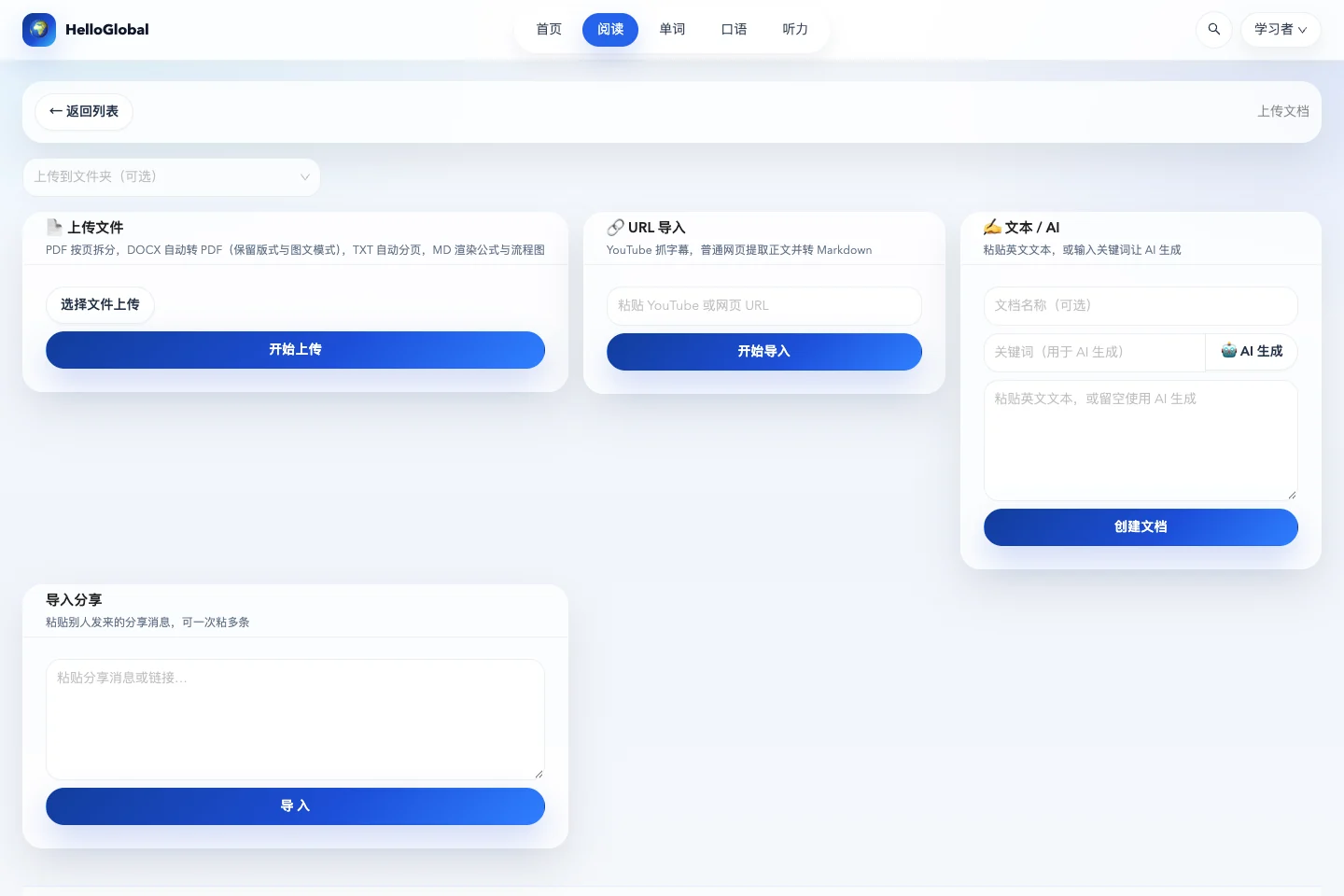
Image-and-text mode offers page rotation for a book scanned sideways, and the preference is retained for that document. Correcting the display orientation makes visual comparison easier, but rotating the view does not itself prove that extracted text has been corrected. Keep the page image available as a reference rather than treating the text layer as a replacement for it.
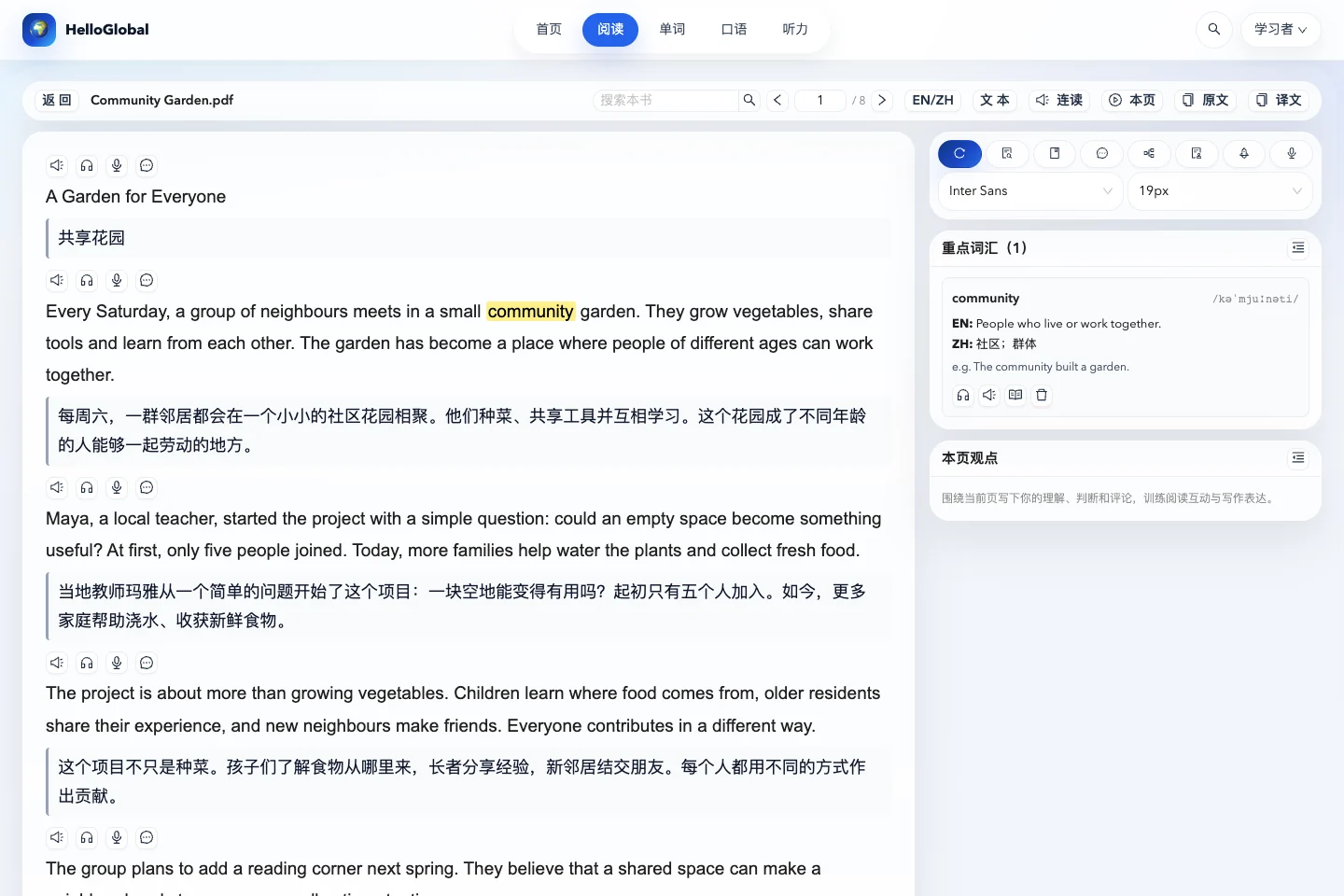
Use extracted text for lookup, narration and translation. In the current enhanced-translation view, Hide background can reduce overlap between a scan and rendered text. Restore the background or open the original preview whenever a chart, paragraph order or printed detail needs checking.
Frequently asked questions
Does rotation automatically rerun recognition?
No. Display orientation and text extraction are separate operations.
Is extracted text always accurate?
No. Check numbers, names and complex layouts in particular.